Tradeflow-docs
Tradeflow – Installation & Setup Guide
Note: This application is compatible with Windows and expires on March 19, 2026.
Table of Contents
- Prerequisites
- Download & First Launch
- Configure Telegram Credentials
- Connect to Telegram
- Set Up MetaTrader 5 Script
- Select Channels
- Daily Use Tips
1. Prerequisites
Before installing Tradeflow, make sure you have the following:
| Requirement | Notes |
|---|---|
| Windows 10/11 | Required |
| MetaTrader 5 (MT5) | Must be installed before launching Tradeflow |
| Telegram account | A real phone number is required |
| Telegram API credentials | Free — obtained from my.telegram.org |
Getting Telegram API Credentials
- Open your browser and go to https://my.telegram.org.
- Log in with your Telegram phone number.
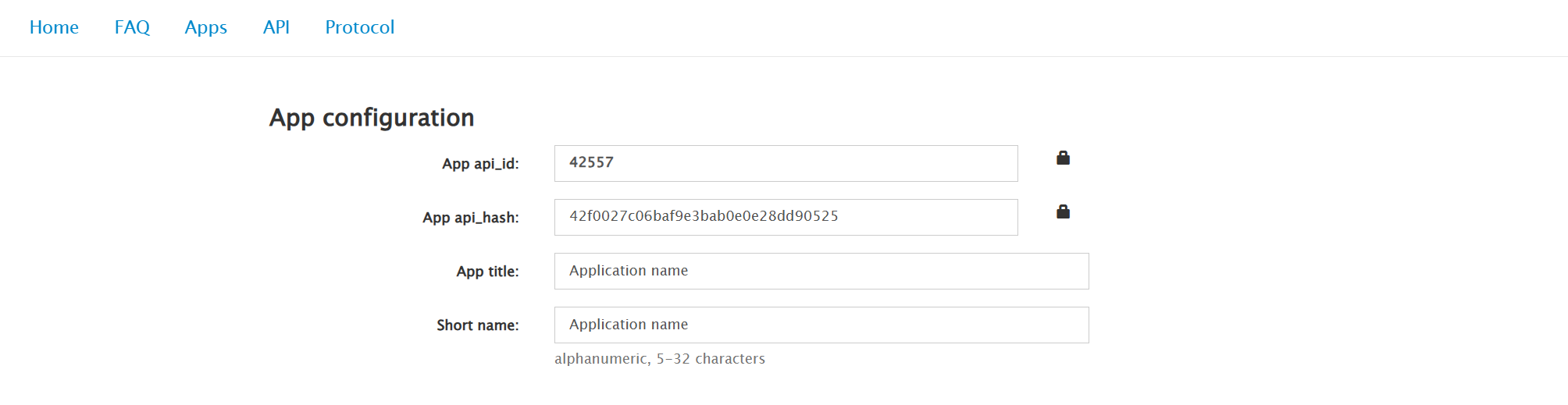
- Click API development tools.
- Fill in the form (App title and Short name can be anything, e.g.
MyTradeflow). - Click Create application.
- You will see two values — copy them and keep them safe:
- App api_id — a short number (e.g.
1234567) - App api_hash — a 32-character lowercase hex string (e.g.
a1b2c3d4e5f6...)
- App api_id — a short number (e.g.
2. Download & First Launch
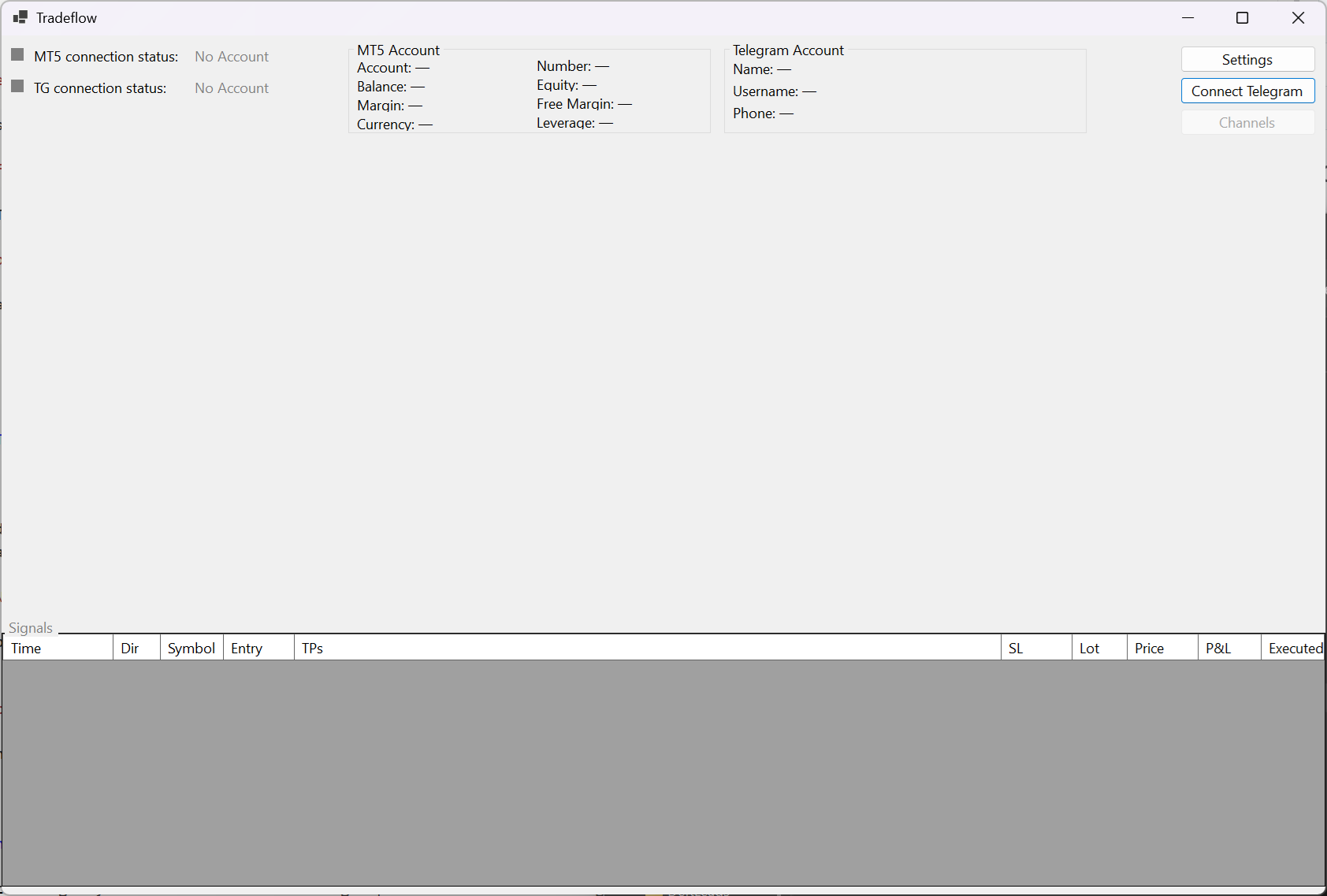
- Download the Tradeflow.exe file you received. No installer is needed — it is a single self-contained file.
- Place it in a folder of your choice (e.g.
C:\Tools\Tradeflow\). - Double-click Tradeflow.exe to launch it.
⚠️ If MetaTrader 5 is not installed, Tradeflow will show a warning message and close. Install MT5 first, then re-launch.
On first launch, Tradeflow automatically copies the Tradeflow.ex5 trading script into all your MetaTrader 5 terminal data folders. You do not need to do this manually.
3. Configure Telegram Credentials
Before you can connect to Telegram, you must enter your API credentials.
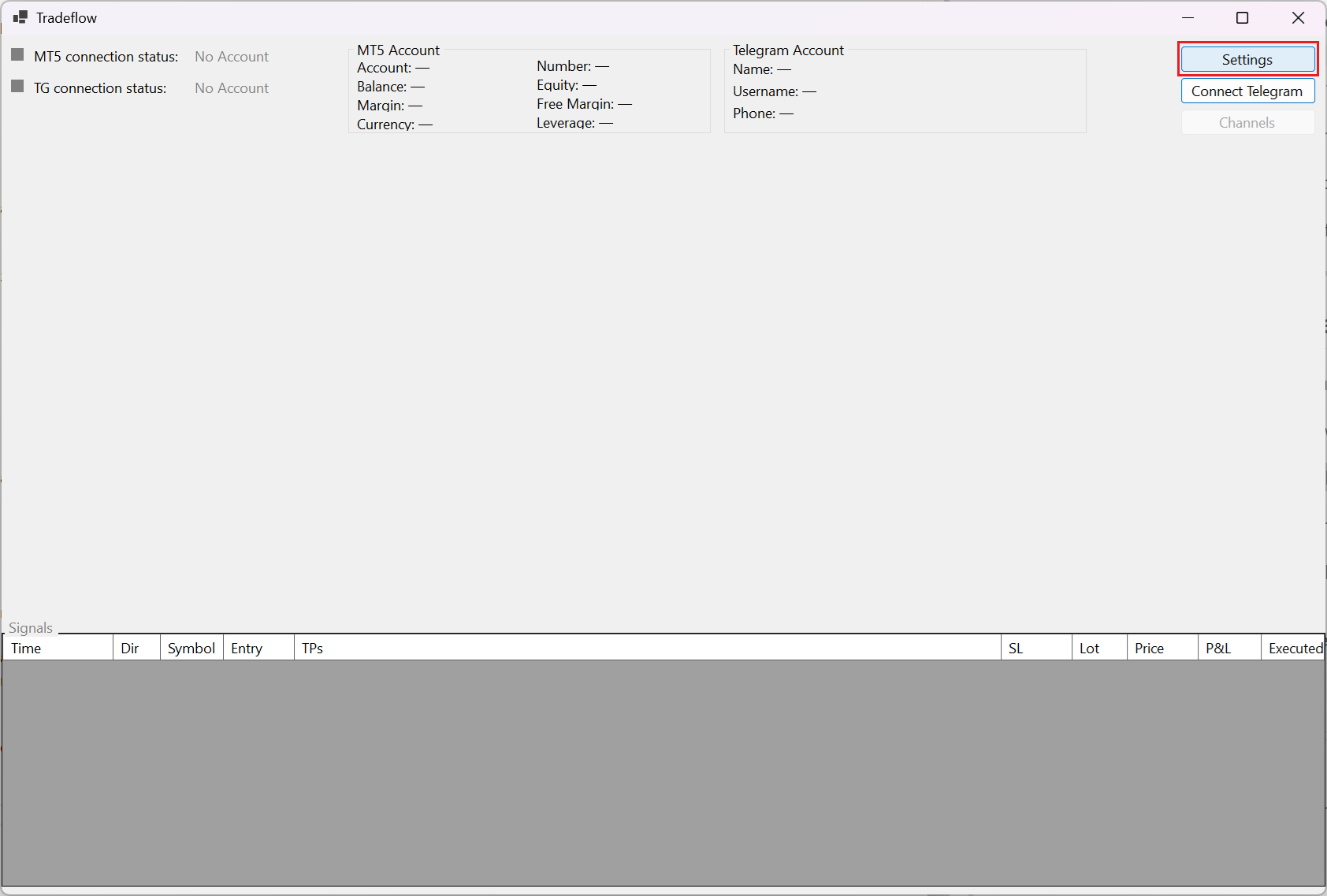
- Click the Settings button in the main window.
-
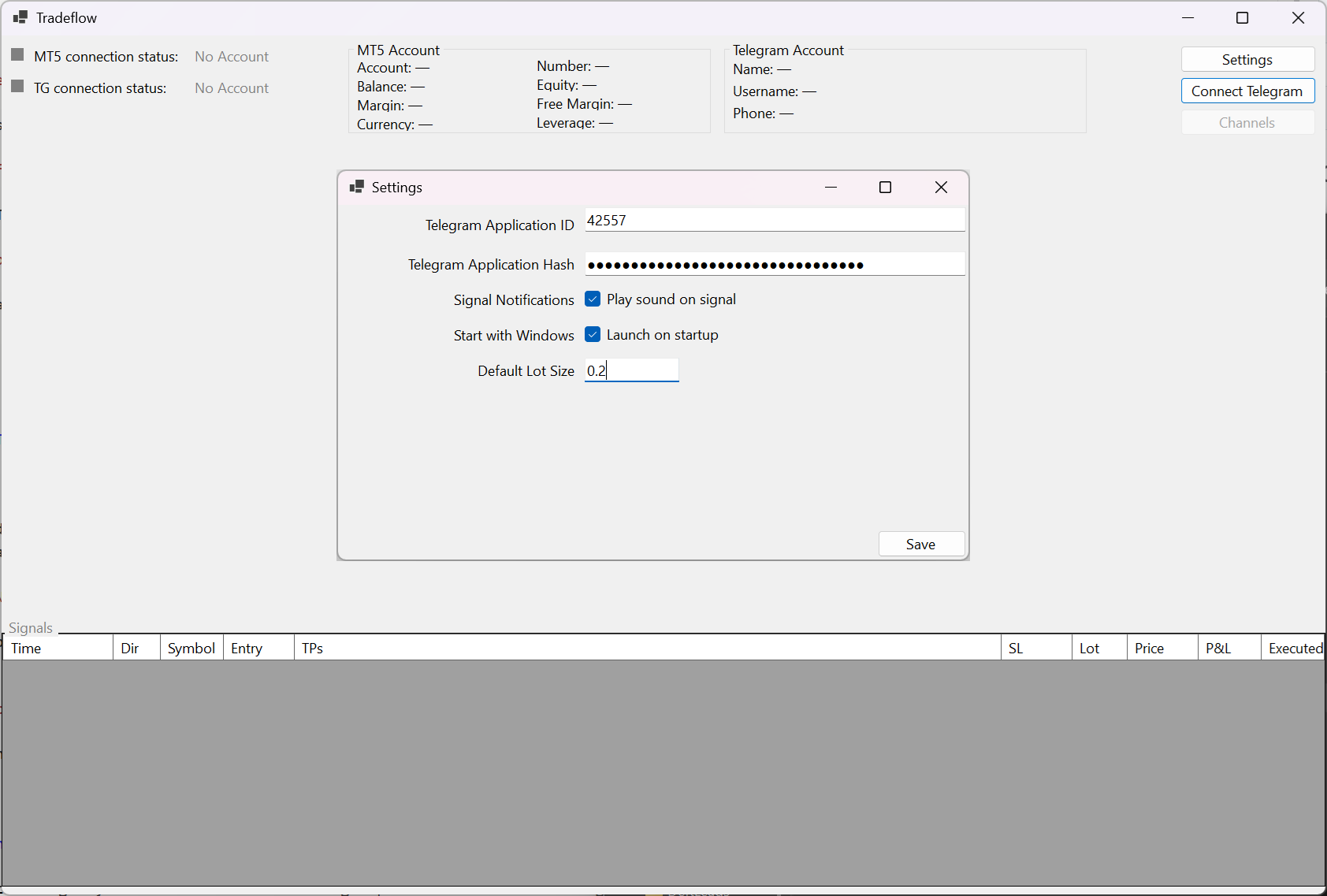
The Settings window will open. Fill in the following fields:
- App ID — paste the
api_idnumber from my.telegram.org - App Hash — paste the
api_hashstring from my.telegram.org - Lot Size — enter the default trade lot size to use (e.g.
0.01)
- App ID — paste the
-
(Optional but recommended) Click Test Connection to verify your credentials are accepted by Telegram’s servers. You will see a success or error message without needing to log in.
-
Click Save to store your settings.
⚠️ If the credentials are invalid, you will see an error. Double-check the values copied from my.telegram.org.
4. Connect to Telegram
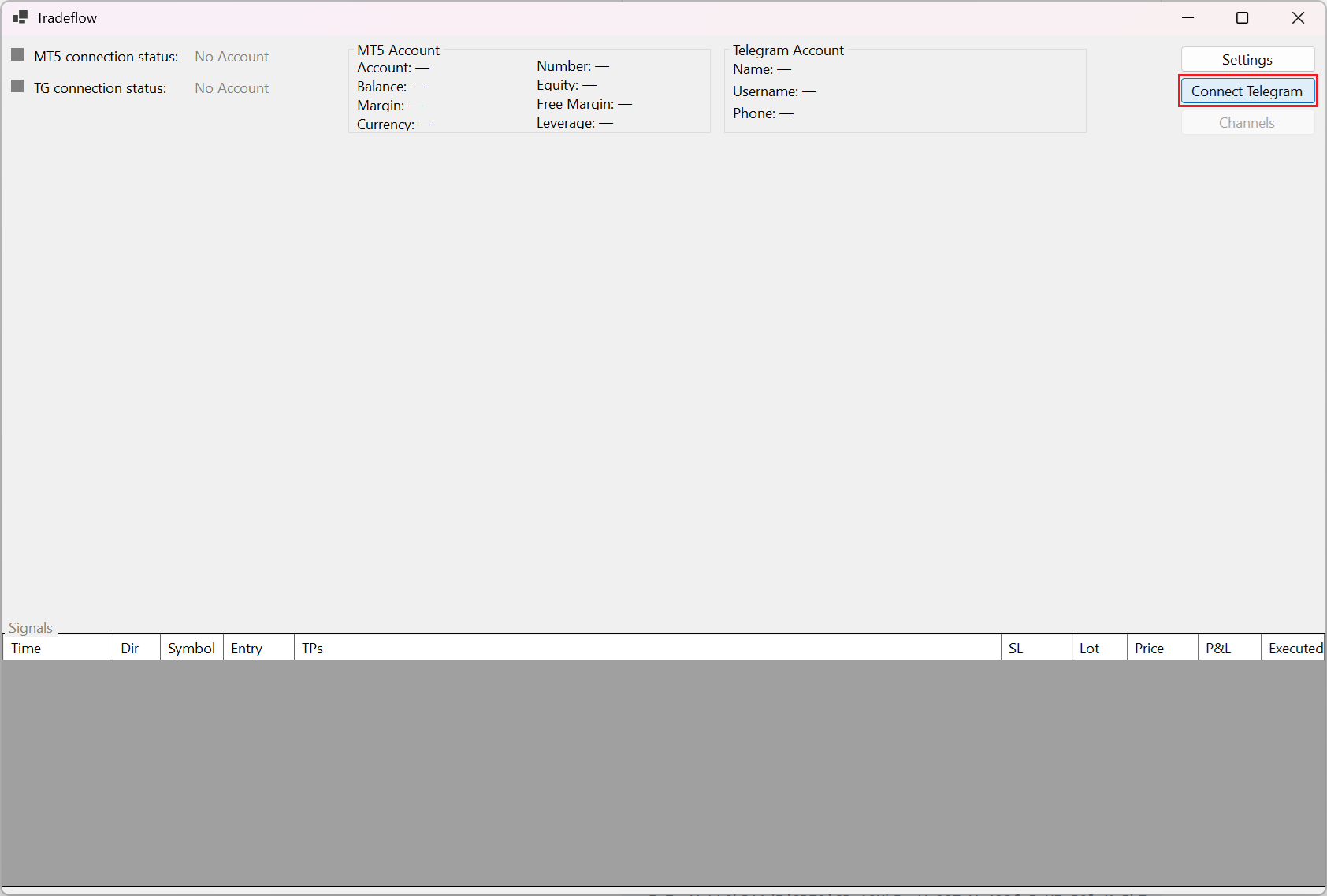
Once settings are saved, the Connect Telegram button becomes active.
- Click Connect Telegram.
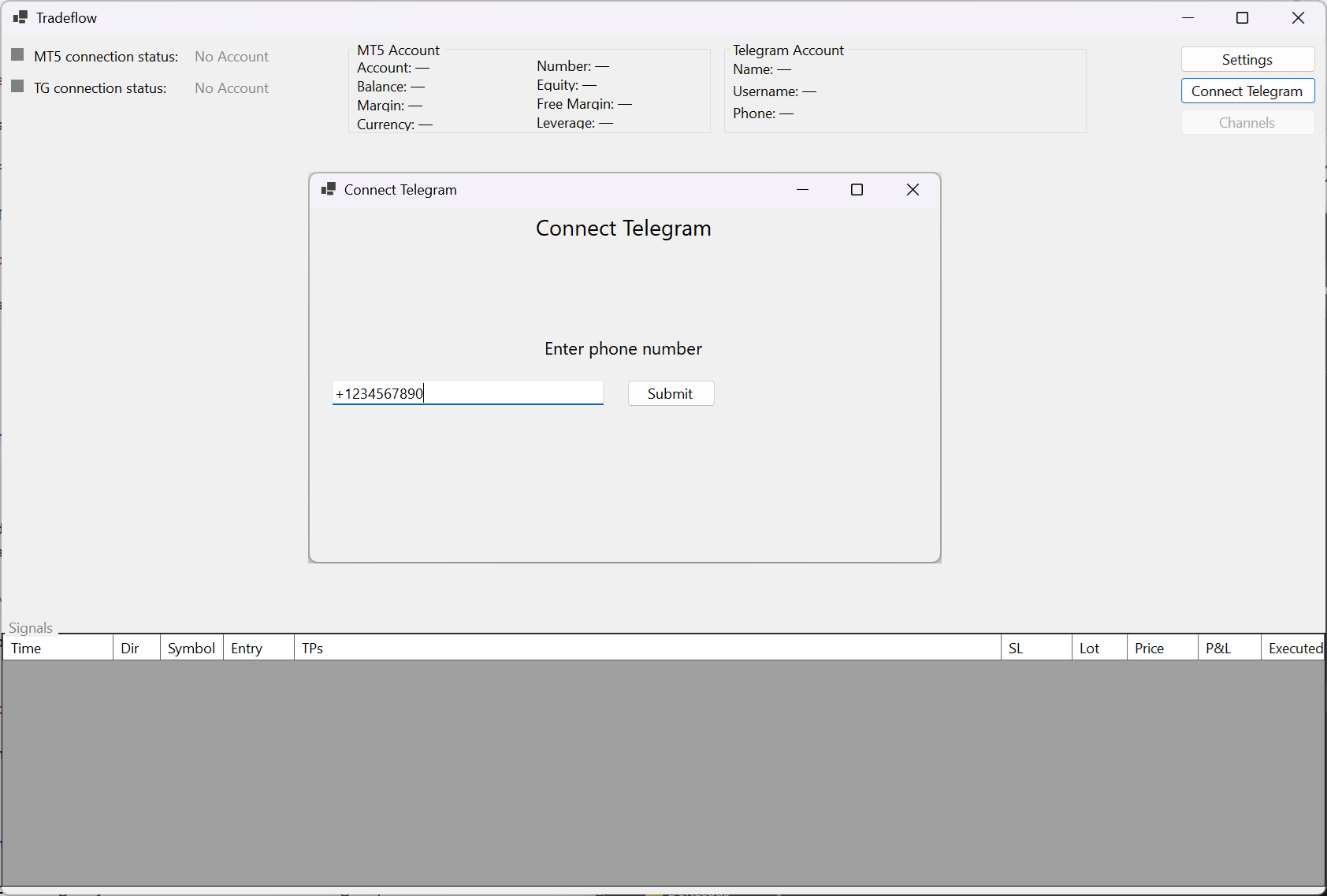
- A login dialog will appear. Enter your Telegram phone number in international format (e.g.
+1234567890).
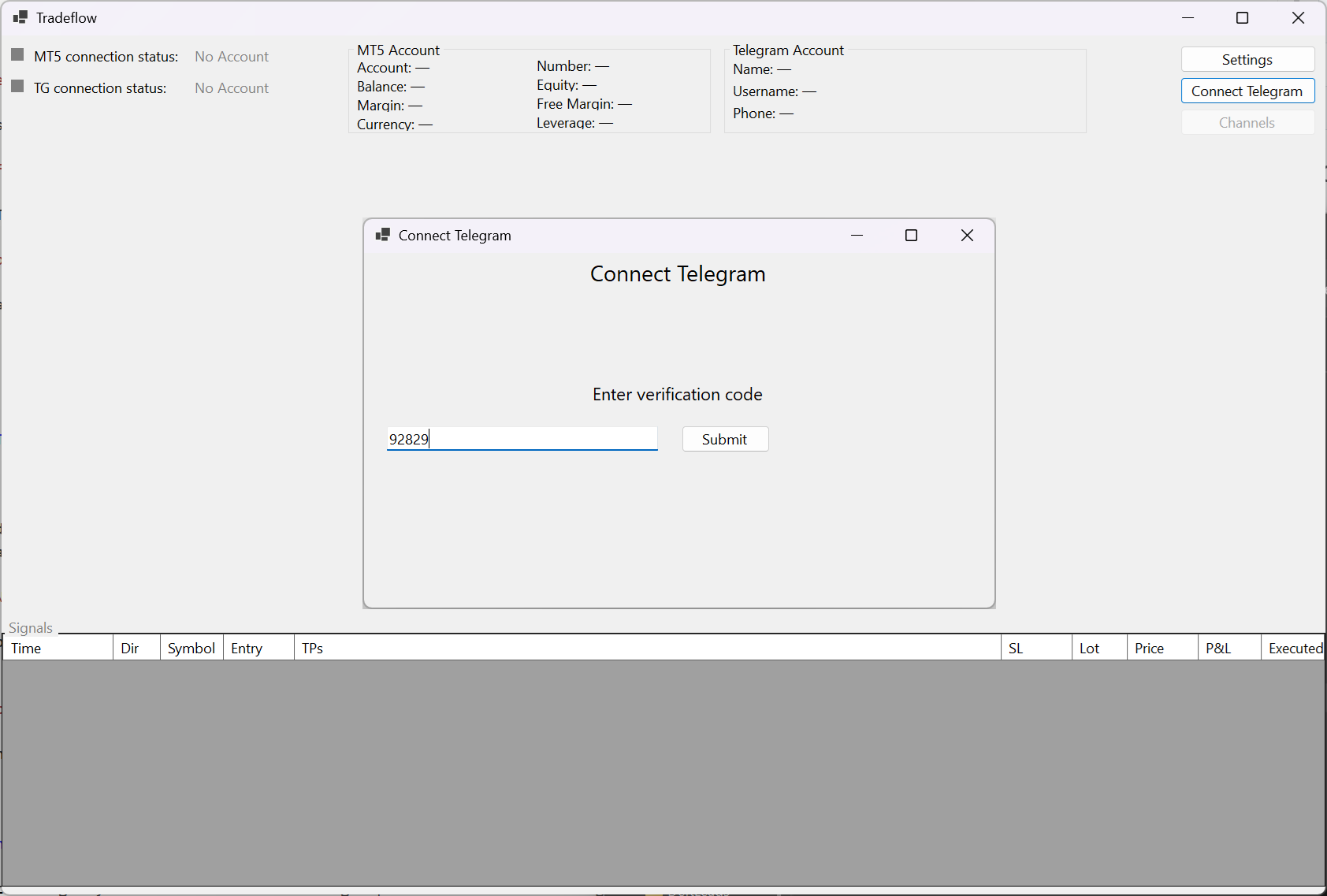
- Telegram will send a verification code to your Telegram app (or via SMS). Enter the code when prompted.
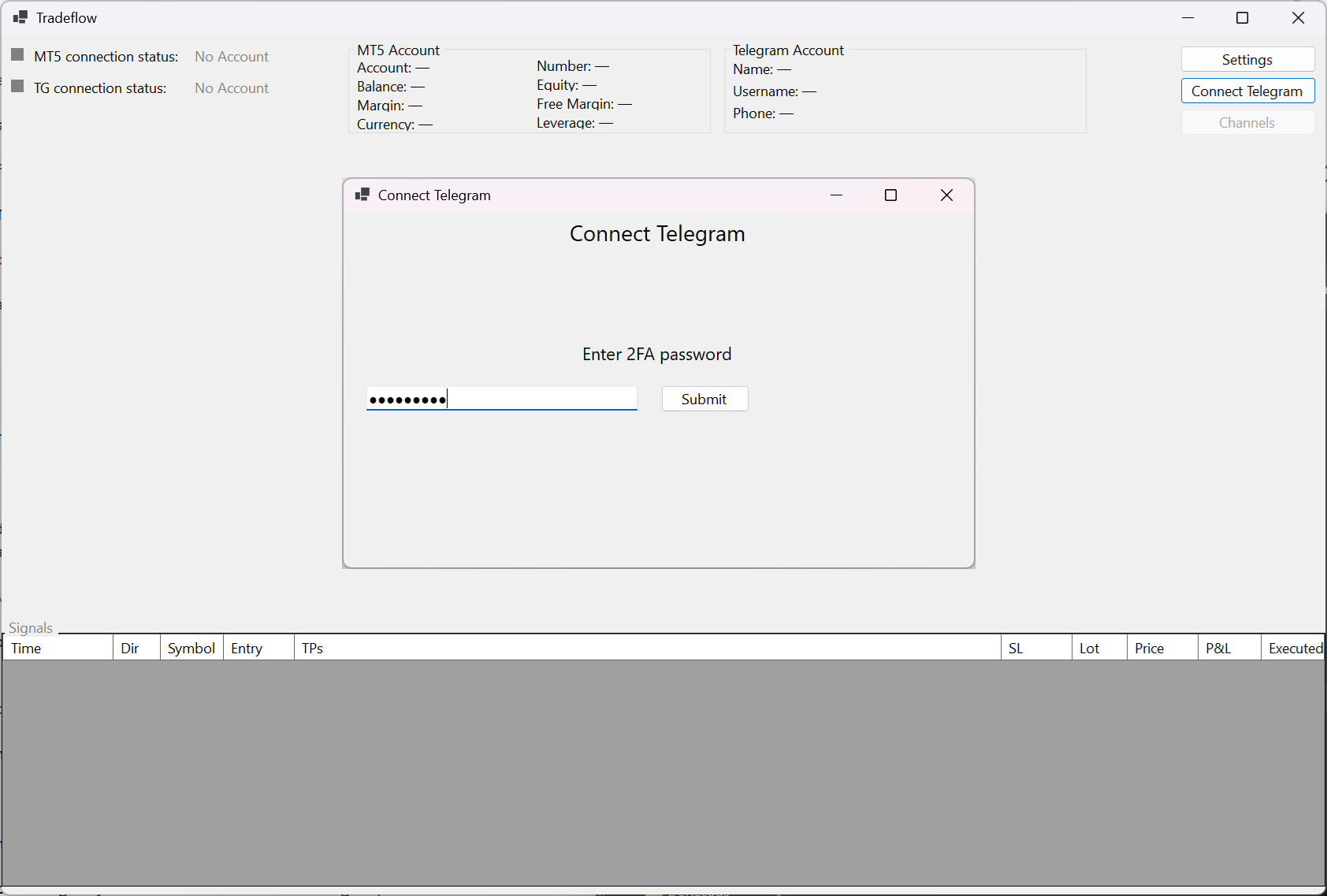
- If you have Two-Step Verification (2FA) enabled on your Telegram account, you will be prompted for your cloud password. Enter it.
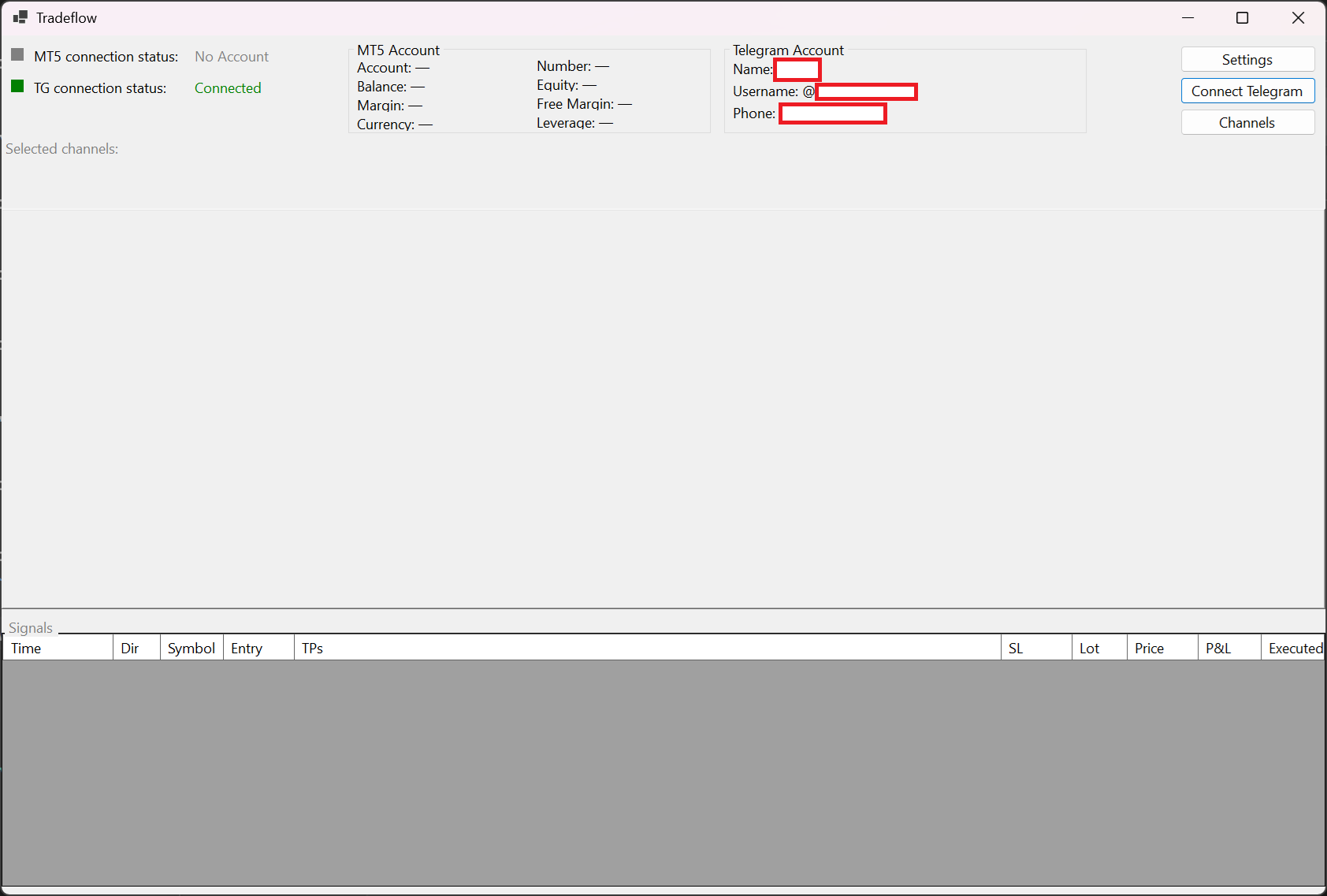
- Once authenticated, Tradeflow connects to Telegram. The status in the main window will update and show your Telegram account information.
5. Set Up MetaTrader 5 Script
Tradeflow uses an MT5 script (Tradeflow.ex5) that was automatically copied to your MT5 data folder on first launch.
- Open MetaTrader 5.
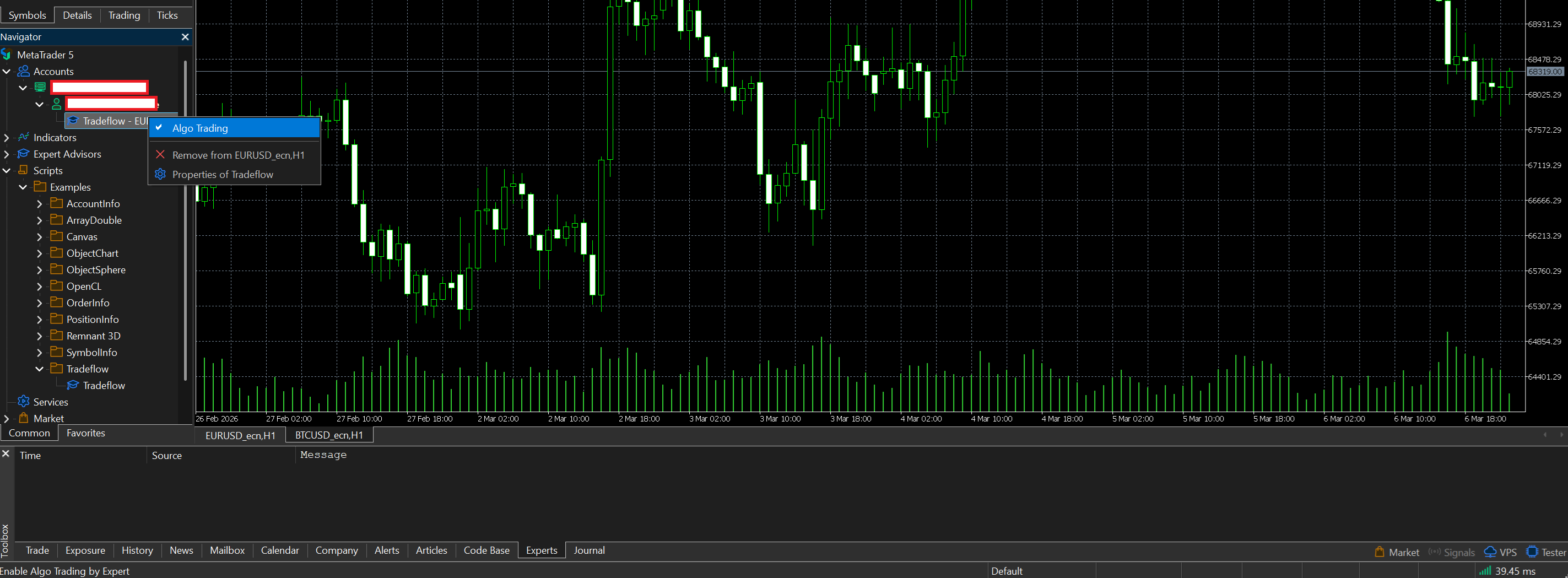
- In the MT5 Navigator panel (usually on the left side), expand Scripts → Examples → Tradeflow.
- Drag Tradeflow onto any open chart.
- A confirmation dialog may appear — click OK.
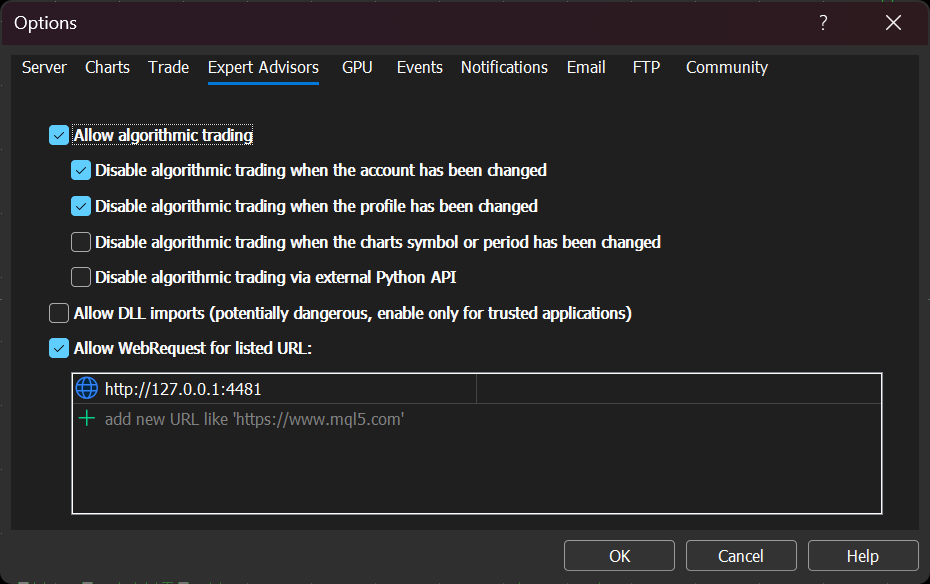
- Open Tools → Options → Expert Advisors in MT5 and ensure the following settings are enabled:
- “Allow algorithmic trading”
- “Allow WebRequest for listed URL” (add
http://127.0.0.1:4481to the list)
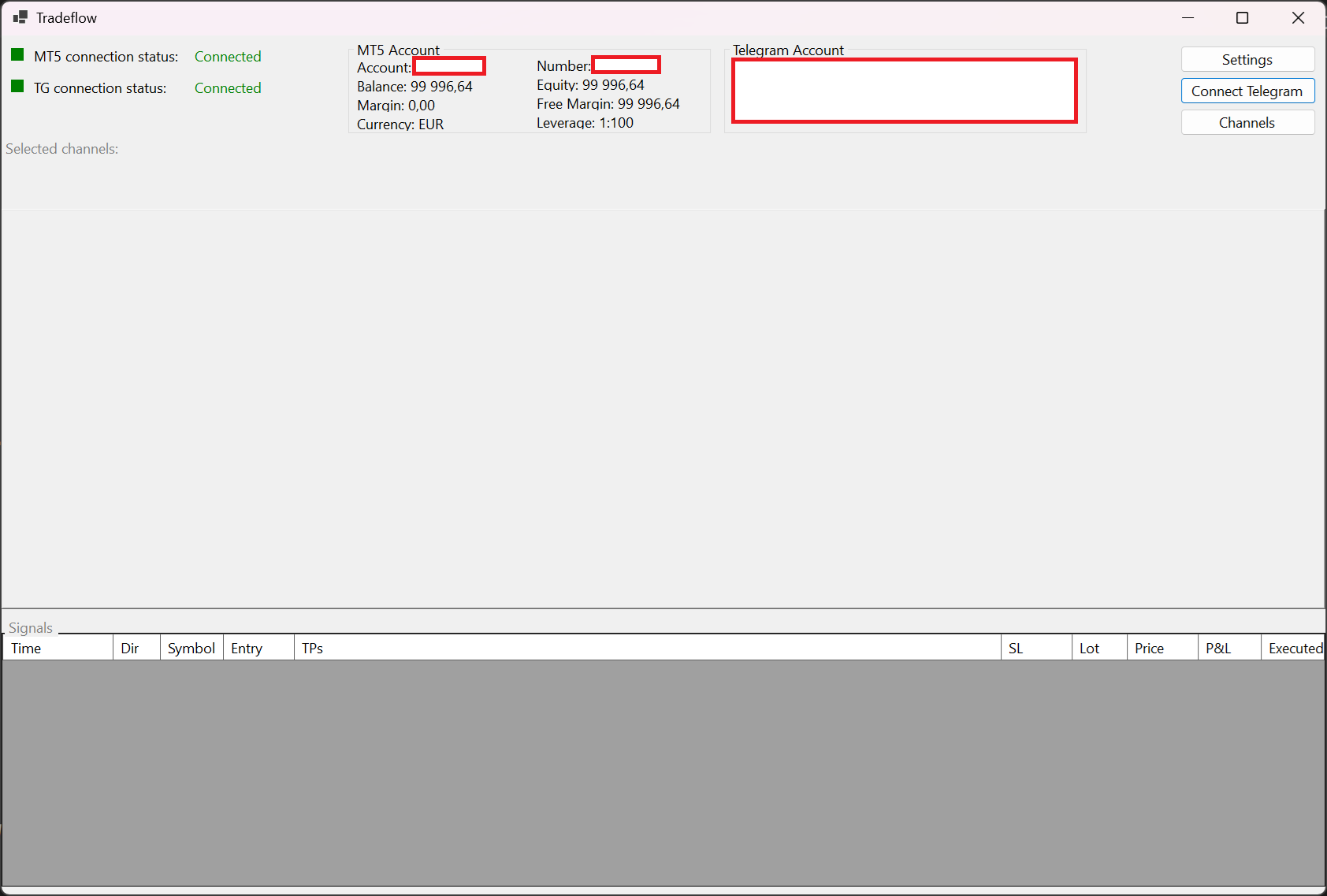
- The script is now running and will receive trade signals from Tradeflow.
- Status in the main window will show updated status and MT5 account information.
6. Select Channels
After connecting to Telegram, choose which channels or groups to monitor for trading signals.
- In the Tradeflow main window, find the Channels panel.
- The list shows all Telegram groups and channels you are a member of.
- Check the channels you want to monitor for signals.
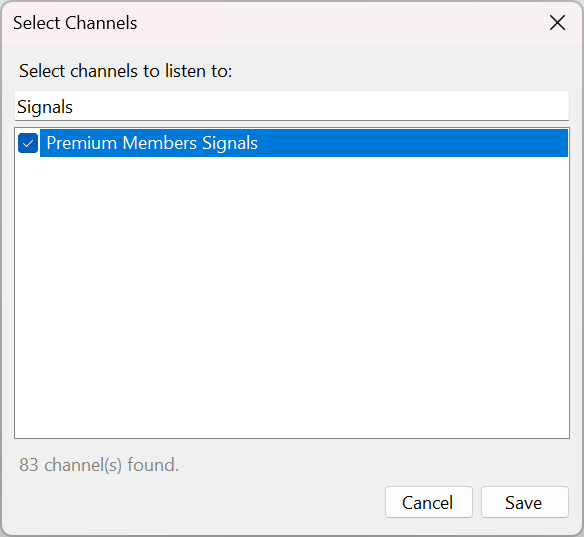
- Your selection is saved automatically and restored on the next launch.
7. Daily Use Tips
- Tradeflow minimizes to the system tray when you minimize the window.
- Your Telegram session is saved locally. You do not need to log in again each time you launch the app.
- If MT5 is updated or reinstalled, re-launch Tradeflow once — it will re-copy the trading script automatically if it has changed.
- Logs are written to the application folder and can be used for troubleshooting.
- The application has a built-in expiry date of March 19, 2026. Contact your provider for an updated version after that date.
End of guide.